When you set an expiry date on a product, Roam will disable it automatically on that date — removing it from search results and filtering it out of product blocks across your site. This article explains how that process works, what to expect, and what to do if an expired product seems to still be showing.
How product expiry works
1. Setting an expiry date
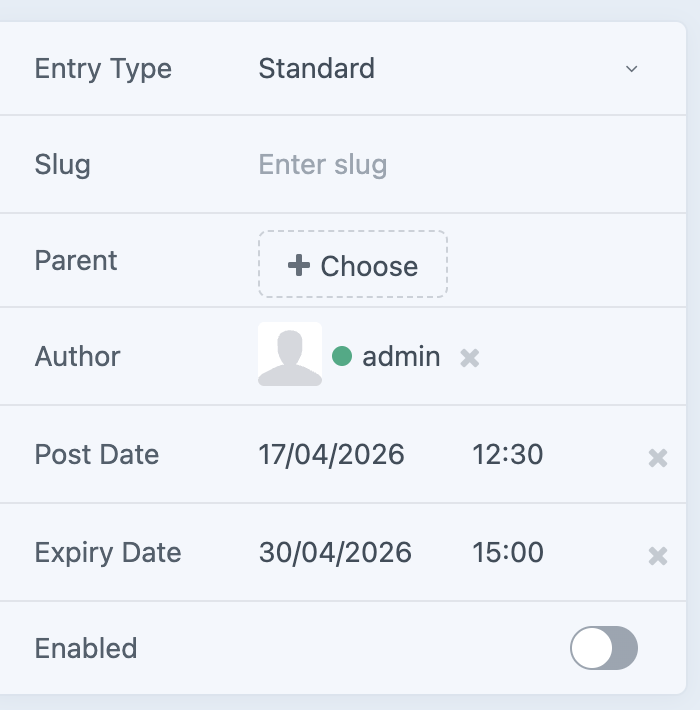
You can set an expiry date on any product entry in the Roam platform. Once that date passes, Roam marks the product as disabled — it will no longer appear in search results, product carousels, or product grid blocks.
Note: For ATDW-imported products (such as events), expiry is managed by the operator in ATDW-Online and synced automatically to your Roam site. You don't need to set these manually.
2. What happens on the frontend
When a product expires, two things happen in sequence:
- The product is disabled in Roam — it is immediately removed from live search queries and filtered out of dynamically loaded product blocks.
- Cached pages update — pages that were already rendered and cached (such as category pages, carousels, or product listing pages) refresh during the next scheduled cache cycle, typically within 24 hours.
This means there is a short window — usually less than a day — between a product expiring and all cached pages fully reflecting that change.
Why might an expired product still appear?
If you spot a product still showing on the frontend after its expiry date, the most likely cause is page caching. Roam caches rendered pages to ensure fast load times for visitors. When a product expires, pages that already have a cached version of that content don't re-render immediately — they wait for the next cache refresh cycle.
This is expected behaviour for most cases and resolves within 24 hours.
Pro tip: You can check whether caching is the cause by appending ?roam-no-cache=1 to any page URL. For example:
https://www.yoursite.com.au/stay/?roam-no-cache=1If the expired product disappears when you do this, it's a cache issue that will resolve on its own — or you can request a manual purge (see below).
What to do if a product is still showing after 24+ hours
If an expired product is still visible more than 24 hours after its expiry date — even when using ?roam-no-cache=1 — follow these steps:
Step 1: Check the product entry
- Log in to your Roam platform.
- Navigate to Products and find the entry in question.
- Confirm that the expiry date is set correctly and that the entry is showing as disabled.

Step 2: Request a manual cache purge
If the product is correctly set to expired but still appearing on the frontend, contact your project manager or submit a support request at support@roamhq.io. Include:
- The URL(s) where the product is still appearing
- The name of the product entry
- When the expiry date was set
The Roam team can purge the cache for specific pages immediately.
Step 3: Check for embedded carousels or manual product blocks
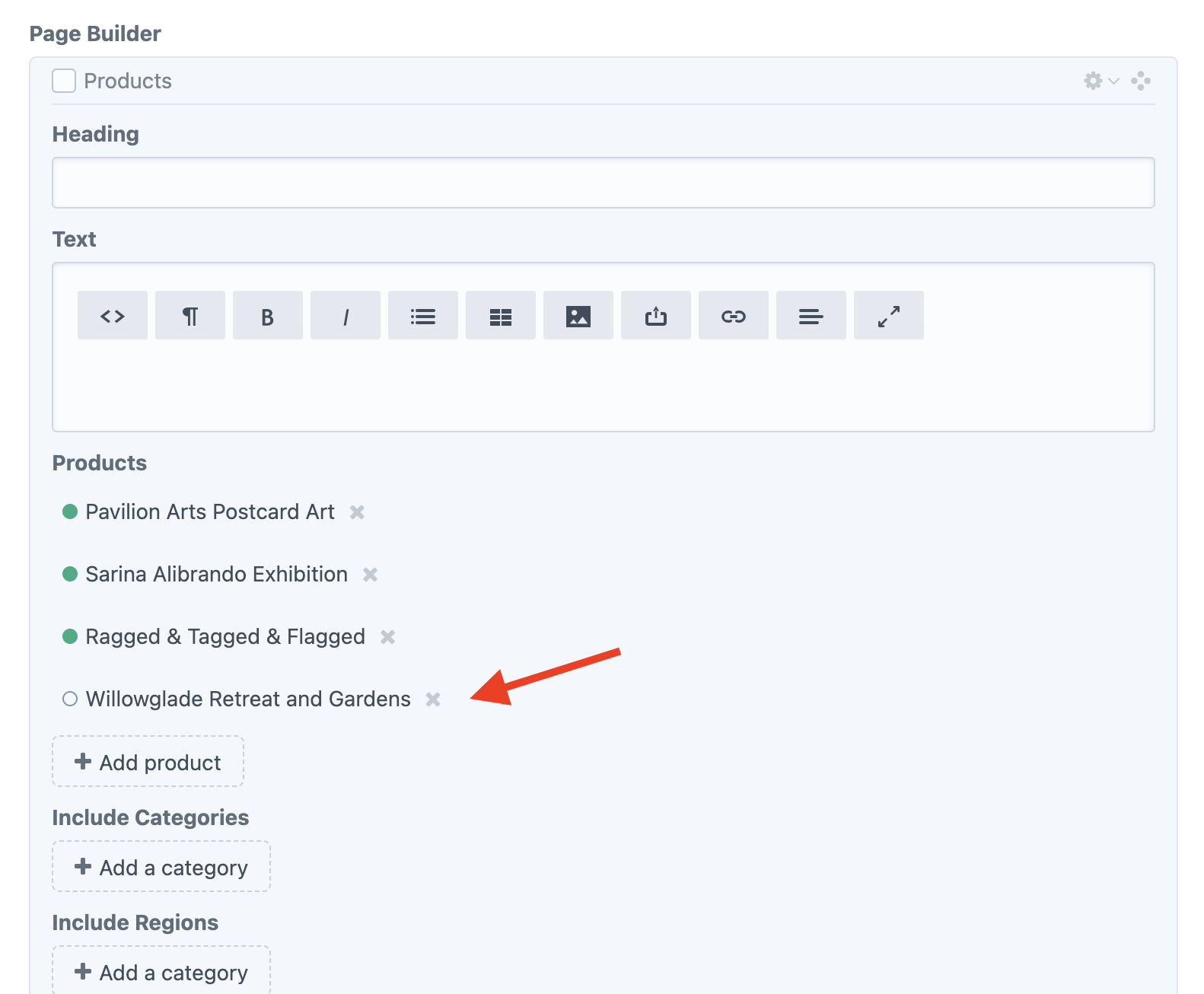
Some product appearances aren't driven by dynamic search — they may be from a Products content block on a specific page where products have been manually selected or pinned. These don't respond to expiry dates in the same way.
To check: go to the page in question in your page builder and review any Products blocks. If the expired product has been manually added, remove it and re-save the page to clear it.
Summary
Situation | What's happening | What to do |
|---|---|---|
Product expired, not showing in search | Working as expected | Nothing needed |
Product expired, still in carousels — within 24 hrs | Cache hasn't refreshed yet | Wait, or use |
Product expired, still showing after 24+ hrs | Possible cache purge issue | Contact your PM or support@roamhq.io |
Product expired but still showing in a specific page block | Manually pinned in a Products block | Remove from the block and re-save the page |