Having a fallback image for your website is important for the odd occasion where a preview image might not be provided.
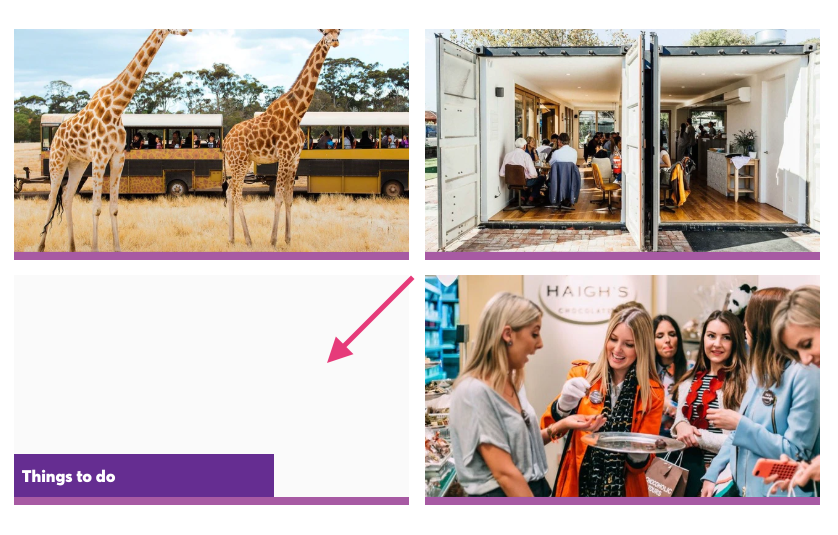
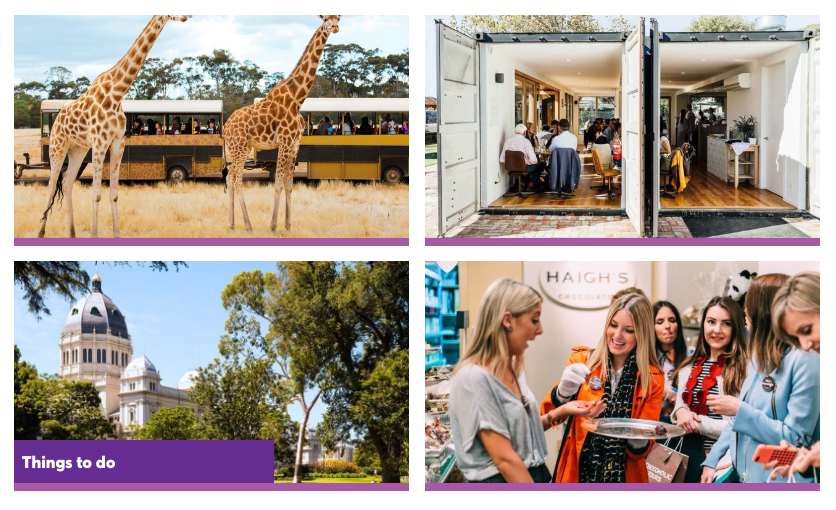
If no fallback is added to your theme and a page, blog post or product entry doesn't have an image, the tile will show as grey.
Tips for picking a fallback image:
This image could show on any content or product page across your site if no image is provided so you want to pick a photo that's generic to your brand. Quite often it will be the same as your hero image on the homepage but it could also be a shot of nature if your brand is very outdoors-based.
How to add a fallback image:
- Go the Theme on the left-hand side of the platform
- Make sure you're in the company tab
- Click +Add Fallback and either pick an image from your assets or upload a new image.
- Save your changes.
- Your fallback image will be visible on any tiles that don't have an image in the next 24 hours after the platform re-caches. (see example below)
Please note: The above setup doesn't apply to the Search page. If you'd like to use a fallback image for the tiles on your search page, the image has to be hard-coded (subject to standard Roam fees). Please contact your project manager for further information.
EXAMPLE:
In this example, we have used the iconic Royal Exhibition Building for a Melbourne-based DMO site as the fallback image which will show in case no other image is provided.